Powerhouse Apps
Serious Windows-style tools for Android tablets and phones — built keyboard-first and blind-friendly.
Free downloads, straight from this page. No account, no store, no ads. Every file's checksum is published so you can verify what you got.
What's a computer?
Years ago, Apple ran an ad asking that question — a kid with a tablet, doing everything, never once calling it a computer. They had the right idea. They just stopped one step short.
Add a folio keyboard to a tablet and it stops pretending. It has real keys, real shortcuts, real work to do. The only thing missing was software that treats it like a computer instead of a big phone. The tablet was never underpowered — it was under-respected.
These apps make my tablet every bit as good as my laptop — or better.
I built every app here on a tablet with a folio keyboard, and built them for one. Menus where menus belong. Dialogs that answer to Alt+Y and Alt+N. Trees you walk with arrow keys. The newer Chromebook-style tablets — Googlebooks and their kin — are the same story: a keyboard, a screen, and a person who expects desktop manners. That's exactly who these are for.
Why these apps exist
Most Android apps are written for thumbs and eyes. These were written for keys and ears first — and they hold up better for everybody because of it.
Blind-friendly by design
Built and tested with a screen reader. I'm blind. Every screen, dialog, and shortcut was tested with a screen reader running — SandFly on Android, NVDA on Windows — not bolted on afterward. If it can't be done by ear and by key, it doesn't ship.
Keyboard-centered
…and touch-friendly too. The keyboard is the fastest way in, so shortcuts come first: full menu bars, consistent keys, nothing hidden behind a long-press. But every action is also on screen as a real, labeled button for touch users.
Classic Windows feel
Software that behaves like desktop software. A menu bar you can walk with Alt, a folder tree inspired by classic Explorer, an editor inspired by the Office you grew up with. If you learned Windows any time in the last thirty years, you already know how these work.
The best of both
Here's the honest position, so nobody has to guess: there's real nostalgia here for the classic Windows feel — real menus, real dialogs, software that sat still and let you learn it. And there's genuine love for Android — the tablet in your hands, the apps, the freedom to install what you want. These apps aren't picking a side. They're the best of both: classic desktop manners, running on the Android device you actually carry.
And to be clear — this is not a complaint about Windows 11. In a lot of ways, Windows 11 is the most accessible Windows ever made, and that matters. The gripes are narrower than that. One: modern ribbon menus, which took toolbars everybody had memorized and turned them into a scavenger hunt. Two: having to haul two devices along when you travel, just so you can do that one thing the second device does. The fix for the second one is this whole page — put the tools on the tablet, and the tablet does it all. One device. Done.
About me
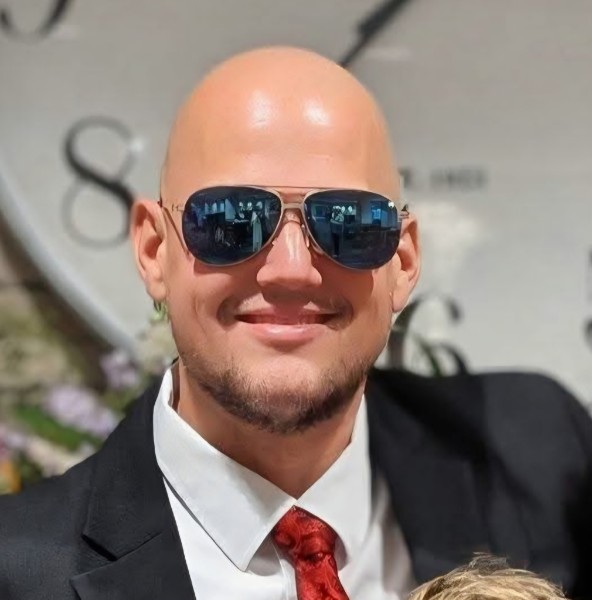
I'm Justin Harris. I'm a gym bro and a tech enthusiast, a cologne junkie, and a DJ. I'm a traveler when the budget allows, and a stay-at-home dad the rest of the time — which, honestly, is most of the time, and I wouldn't trade it.
I'm also blind, and I got tired of Android software that treated my tablet like a toy and me like an afterthought. So I designed the tools I actually wanted, had them built with AI assistance, and then tested them the hard way — on my own devices, with my own screen reader, doing my own real work — until they behaved. Everything on this page is something I use every single day.
By day (and plenty of nights) I also run Powerhouse Radio, my Christian station here in southeast Kansas — there's a link below if you want to see what else I get up to.
The apps
Five apps, one idea: your tablet is a computer — here's the software to prove it. Each app's page has its download, its permissions explained, and its documentation.
File Explorer v1.17
A file manager inspired by classic Windows Explorer — a tree of folders, a real menu bar, and limited Google Drive built in.
Arrow-key tree navigation, an in-app recycle bin, and copy/paste between your device and the Drive files File Explorer manages — plus bridges to the rest of your Drive.
WordSmith v1.16
A word processor inspired by classic Notepad and pre-ribbon Office — DOCX documents, real menus, no ribbon.
A keyboard-first word processor with protected view on open, Find & Replace, and an offline spell checker in ten languages.
WaveSmith v1.16.2
An audio editor inspired by programs like GoldWave for Windows and Amadeus Pro on the Mac — now with a swipe area: editing gestures right on the waveform, even with a screen reader running.
Drive it by keyboard, touch, and announcements: spoken status, effects including a Radio preset and spectral denoiser, and exports to WAV, MP3, and M4A — built to cut a real weekly podcast, and the station IDs, promos, and spots for my own radio station, without sight.
NVDA Remote v1.27
Control a Windows PC running NVDA from your phone or tablet — keyboard, buttons, a D-pad, or swipe gestures.
A personal client for NVDA Remote Access: folio-keyboard passthrough, on-screen buttons, a key-combination builder, a gesture swipe area on the session screen, and an honest readout of whether a computer is really on your channel.
Remote VT v0.14
A remote voice tracking client for StationPlaylist — modeled on the Windows Remote VT Editor, keyboard-first, made for a blind DJ.
Browse playlist logs and hours, record voice tracks with the VT Recorder, edit with the Windows editor's own keys, and save edited hours back to your server.
A word about SandFly
SandFly is the screen reader I used to build and test every one of these apps — and the one I run every day.
Let me be clear about the credit, though: I didn't build SandFly. It's by Aaron Hewitt. It just works best for me, so it's the reader these apps were designed around.
One of its features is a big reason these apps behave the way they do: “pass keys to app.” Normally, a screen reader grabs your hardware keys for its own navigation — which is usually what you want, until an app needs those same keys to do its own job. Turn on pass keys for an app, and SandFly steps aside and lets the app receive the keys directly. The app gets to behave the way I designed it to, even when that contradicts SandFly's standard behavior. It's a great thing to have, and several of these apps lean on it hard: File Explorer, WaveSmith, NVDA Remote, and Remote VT all want pass keys turned on for them in SandFly's settings. If a key ever seems to do the screen reader's thing instead of the app's thing, that's the first setting to check.
Want to try the same setup I use? Download SandFly — that link always fetches Aaron's latest stable release, whatever version that is at the time. More about it on its Accessible Android page.
Honest compatibility note: Because I built and tested everything under SandFly, these apps may or may not work the same with TalkBack or any other Android screen reader. They might be fine. They might not. I can't promise either way — I can only tell you what I tested, and I tested with SandFly.
And when an app isn't the answer: scripts
Not everything needs its own app. Sometimes the app already exists and does its job fine — it just doesn't handle accessibility the way I'd like it to. For those, you don't need another app: you just need to tell your screen reader how you want it to behave in the apps you've already got. That's what SandFly scripts are for, and I've gathered the ones I use every day — for Facebook, my phone app, my email, and more — on their own page: SandFly Scripts.
Why no Play Store?
Fair question — sideloading deserves an explanation, not a shrug. Here it is, with nothing hidden.
To behave like desktop software, these apps have to do a few things that store policy doesn't allow — or allows only with restrictions that would break the feature:
- All-files access — a file manager that can only see some of your files isn't a file manager.
- Installing updates from inside the app — so you're always on the latest version without hunting for a download.
- Capturing hardware keys — NVDA Remote's folio keyboard only reaches the PC because an accessibility service passes the keys through.
None of that is harmful, and none of it is a secret — every permission on every app page is explained in plain English, and every download's checksum is published so you can verify your file yourself. The store has rules, and plenty of them make sense. These apps simply don't fit them — so rather than cripple the apps to squeeze through, I keep them here, in the open. That's the whole story.
Why Play Protect warns about these apps
Most installs from this page go straight through now, with no scary warnings at all. Every app here is signed with Powerhouse Apps' own permanent release key — a real publishing identity, the same key on every release — and that settled identity is also why each update installs cleanly over the last one, with none of the ugly warnings that used to come with test keys. Play Protect may still flag one of these apps now and then — and it may not. WordSmith is the one it almost never looks at twice. If you do get the warning, it's real, it's doing what it's designed to do, and it's wrong about these apps. Here's both halves, plainly.
Why Play Protect thinks they're unsafe
Play Protect doesn't know these apps, and what it can see about them looks, on paper, a lot like trouble:
- None of them come from Google Play. Play Protect has never vetted them, and they have no reputation with Google's scanners. An app it has never seen starts with suspicion, not a clean slate.
- Every app here can install packages. That's how the built-in updater installs its own updates — but installing apps is also exactly how malware “droppers” work, programs whose whole job is to quietly install something worse. That one permission is a loud alarm all by itself.
- Each app carries a permission that pattern-matches something risky. File Explorer can see all your files — that's its whole job as a file manager. WaveSmith and Remote VT use the microphone — they're recorders. The NVDA Remote client runs an accessibility service — it is a remote-control tool, and that alone is enough to draw the hardest warnings.
- They're signed with Powerhouse Apps' own release key — a permanent publishing identity, the same key on every release, which is how each update installs cleanly over the last one. What that signature doesn't carry is a store's vetting behind it, so to a scanner these still read as unknown software from outside the store.
- WordSmith is the exception that proves the pattern. It asks for the least — internet and the updater permission, no microphone, no files, no accessibility — so it's the one app here Play Protect usually scans quietly.
Why it's wrong about these apps
Play Protect can't read source code, and it can't read intent. It judges the silhouette — where an app came from and what it could do — not what it actually does. These apps trip the silhouette checks for reasons that are all on the surface:
- Every permission here does exactly one job. Each app's page lists its permissions in plain English, with the reason for each one. Nothing is in there “just in case.”
- There's nothing else riding along. No ads, no analytics, no trackers — and nothing phones home except the update check.
- Every release is scanned before it ships. Before any version is published, the file goes through VirusTotal's scanners — and every report so far is clean. Each app's page links its own scan report right next to its checksum, so you can read the verdict yourself.
- You don't have to take my word for any of it. That's why every download carries a published checksum. Verify the file you downloaded is the file described here, let Play Protect scan it, and decide with both pieces of information in hand.
I'm not asking you to ignore the warning — I'm asking you to read it for what it is: a statement about where these apps come from and what they're capable of, not a finding about what they do. And yes, seeing those warnings can be scary the first time. These apps are safe — I use them on my own devices every day, because I built them for me first.
How do I sideload anyway?
Since there's no store, you install these apps the old way: download the .apk file from the app's page here, and let Android install it directly. Yes, it sucks a little the first time — Android makes you give permission once, per app, before it'll install anything that didn't come from a store. But you only do that dance once, and from then on it's easy: the app's own built-in updater handles new versions for you.
The basic steps
- On the app's page here, tap its Download button. The .apk file lands in your Downloads folder.
- Open your file manager (or tap the download notification) and tap the .apk file.
- The first time, Android stops and says this app can't install unknown apps. Tap Settings in that prompt and turn on Allow from this source for the app you're installing from — your browser or file manager. (Details per brand are below.)
- Go back and tap the .apk again, then tap Install.
- Play Protect may still show its warning — that's the one explained above. Read it, and if you're installing from this page, choose to install anyway.
- Done. Open the app like any other. Updates arrive inside the app from then on.
Where the “allow installs” switch lives, by brand
- Google Pixel: Settings → Apps → Special app access → Install unknown apps → pick your browser or file manager → turn on “Allow from this source.” The install prompt's Settings button takes you straight there.
- Samsung Galaxy: Same path — Settings → Apps → the three-dot menu → Special access → Install unknown apps. Samsung also has Auto Blocker (Settings → Security and privacy → Auto Blocker); if installs keep getting refused outright, Auto Blocker is the usual culprit — it has an on/off switch of its own.
- Other brands (Motorola, OnePlus, and friends): Settings → Apps → Special app access → Install unknown apps, or search Settings for “unknown apps.” The names wobble a bit, but the idea is identical everywhere: permission is per source app, granted once.
What changes with newer Android (the verification era)
Google is rolling out developer verification: apps are being tied to a registered developer's identity, and starting in late September 2026 that became a requirement in the first wave of countries (Brazil, Indonesia, Singapore, and Thailand), with more of the world scheduled to follow from 2027. On up-to-date devices, if an app's developer isn't registered yet, Android may not install it the normal way — instead it offers an advanced flow for people who know what they're doing:
- Turn on Developer options (Settings → About phone → tap Build Number seven times).
- In Developer options, open Apps from unverified developers and turn on Allow apps.
- Confirm with your screen lock, then restart the phone when it asks.
- Wait out the built-in 24-hour waiting period — deliberately there so nobody can be talked through this on a scam call.
- Come back, confirm once more with your PIN or fingerprint, and choose whether to allow unverified apps for seven days or indefinitely.
It's a one-time setup — once it's done, installs and updates from unregistered developers work without ADB and without repeating the wait. It may not be on every phone yet; Google has been rolling it out gradually since August 2026. (Facts checked November 2026; this is the part of Android that's moving fastest, so the wording on your phone may differ a little.)
Whichever route your phone takes you down: the first install is the annoying one. The second takes seconds. I think you'll find it worth it once you see what is waiting on the other side.
Trust and transparency
Who made these, how they were made, and how you can check them — all on the table.
I don't code. I designed these apps and directed every feature — what each screen does, what each key does, what each dialog says. They were built with AI assistance, then I tested, got things fixed, and tested some more, until they were exactly what I wanted. The testing is not a figure of speech: NVDA Remote went through seven builds in a single day before a diagnostics log — and my own detective work on my tablet — pinned down a one-character typo in a channel key.
That's my honest word on "vibe coding," too. It can be genuinely good — these apps exist because of it. It gets its bad rap when nobody directs, nobody tests, and whatever comes out first gets shipped. Here, I directed, and I tested everything on real hardware, with a real screen reader — because I'm the person who depends on these apps daily.
- Every permission explained — on each app's page, in plain English, with the reason.
- Every checksum published — the checksum for each download is on its page, so anyone can verify their file matches the release exactly.
- Scan reports published alongside releases — don't take my word for "virus-free"; the reports and the checksums let you check.
- No accounts, no tracking pitch — you download an app, it does its job. Where an app uses the internet, its page says exactly what for.
Feedback
I made these apps for me — built to make my tablet work the way I needed it to. Once they did, they felt too useful to keep to myself, so I'm sharing them.
Feedback has two routes, and both land in an inbox that actually gets read and triaged — not a form that vanishes into the void. The apps' built-in Send diagnostics / Report a bug and Send feedback options are the way in — and both land at support@powerhouseapps.net, which is also where you can reach me directly.
Report a bug
A report sent together with the app's diagnostics log — always. There is no bug-report route without the log: the log is what lets a problem be verified instead of guessed at — what the app was doing, what the device was doing, and where it went sideways. It is built to leave sensitive things out: no file contents, no message text, no passwords, and never your channel key. Real bugs get sorted from the rest: some turn out to be a missed page in the documentation, and those get a friendly pointer to the section that answers them.
Send feedback
A plain form — no log attached — for comments and feature requests. Something the app almost does? Something you wish it did? That's this one.
The terms, kindly but plainly
Feature requests are genuinely considered. Bug reports are taken seriously and fixed if I can. Beyond that: no promises. These are my apps, maintained alongside everything else in my life, and anything that happens will happen on my schedule. Please don't spam me about it — sending the same note five times won't move it faster; it'll just be five copies of the same note.
The apps are free, and they stay free. If one of them saves you some hassle and you want to chip in, there's a tip jar — completely optional, always.
More from my world
Powerhouse Radio
Your southeast Kansas Christian station — CCM, Christian rock and rap, and The Morning Lift with Justin Harris, weekday mornings. The station launches in January, and the site is warming up now.
Sunflower Photography
My fiancée Leya's photography business — family portraits, big days, and the moments that matter, shot right here in southeast Kansas.